












Product Introduction
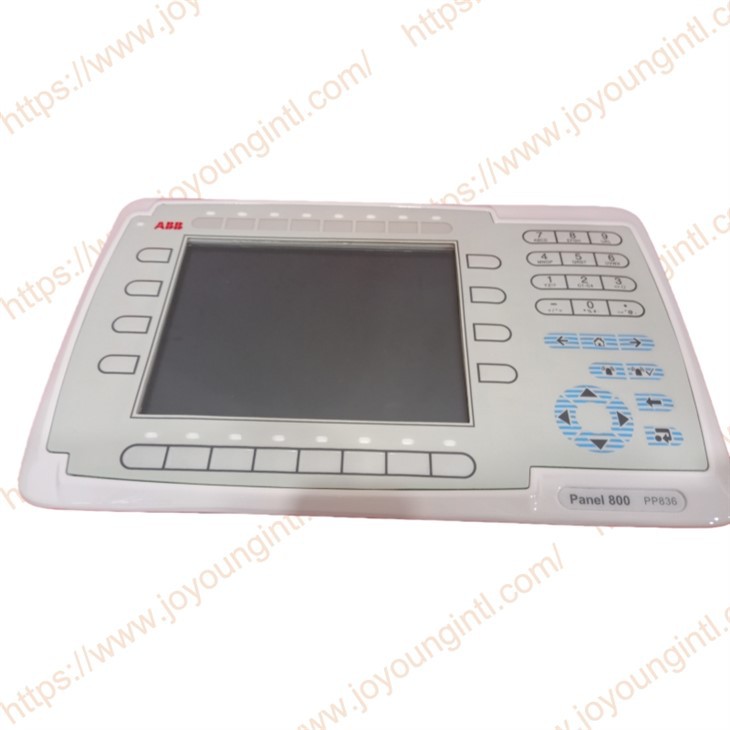
3BSE042237R1 PP836 is an industrial touchscreen operator panel from ABB's Panel 800 series, emphasising lightweight design and ease of use, and adaptable to the human-machine interaction needs of various industrial automation scenarios. It features a 6.5-inch colour TFT display with a resolution of 800×480 pixels, employing a capacitive touchscreen design for sensitive operation.
Technical Specifications
|
Manufacture |
ABB |
|
Model |
PP836 |
| Part Number | 3BSE042237R1 |
|
Description |
Panel 800 Operator Panel
|
|
Origin |
Sweden |
|
Dimension |
16*12*5cm |
|
Weight |
1.88kg |
Product Details
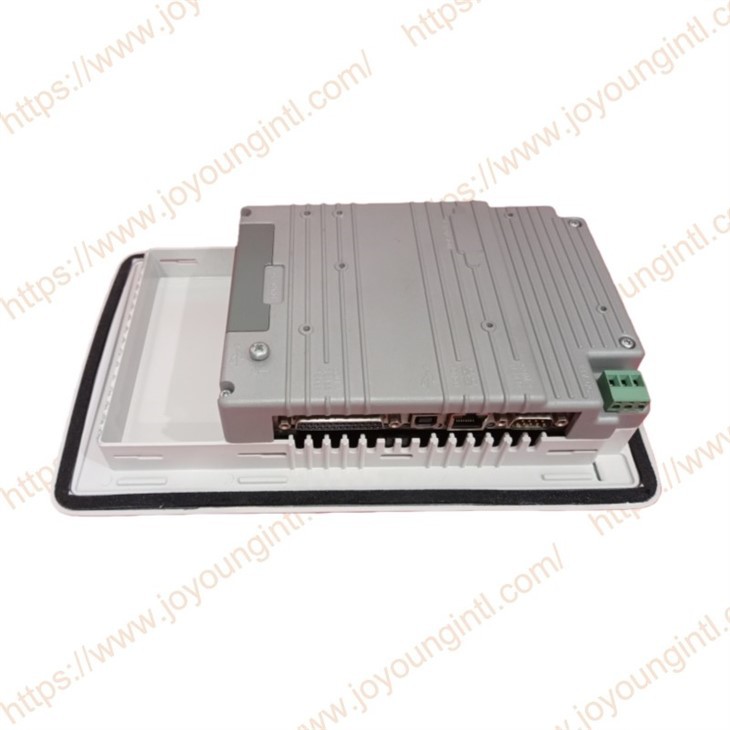
All mode switches must be in the OFF position during operator panel use. The mode switches should not be touched unless by qualified personnel. The operator panel has four mode switches (DIP switches) located on the back of the operator panel.
The drawing below shows where the switches are located.
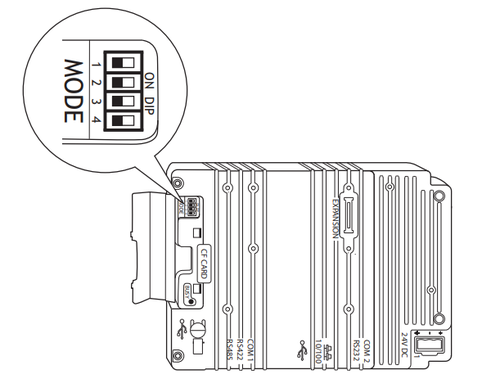
Enter the desired mode in the following steps:
1. Disconnect power from the operator panel.
2. Set the mode switches.
3. Reconnect power to the operator panel.
The mode switches have the following functions:
1=ON, 0=OFF, each letter in "MODE" has a corresponding Mode Switch
3BSE042237R1 PP836 Installation:
Perform the following steps to install an internal Compact Flash card in the operator panel:
1. Turn off the power to the panel.
2. Remove the back cover on the operator panel, using a torx screwdriver (T10*50).
3. Flip the back cover; the CPU board is mounted inside the back cover.
4. Insert the Compact Flash memory card in its slot on the CPU board.
5. Re-attach the back cover to the operator panel.
6. Turn on the power to the operator panel.
7. When the operator panel starts up, you will be asked if you would like to move the files to the internal card; select YES to this question.
Settings in Panel Builder 800 3BSE042237R1 PP836:
The size of the internal memory card must be entered in the configuration tool for the operator panel.
1. Select Setup/Terminal Options.
2. Enter the size of the internal memory card under Memory card settings/Internal.
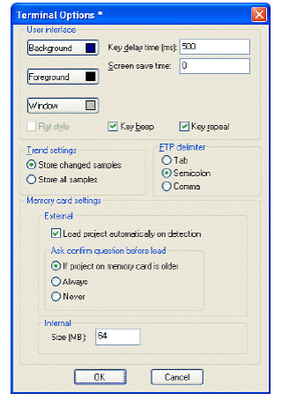
3. Click OK to close the dialogue.